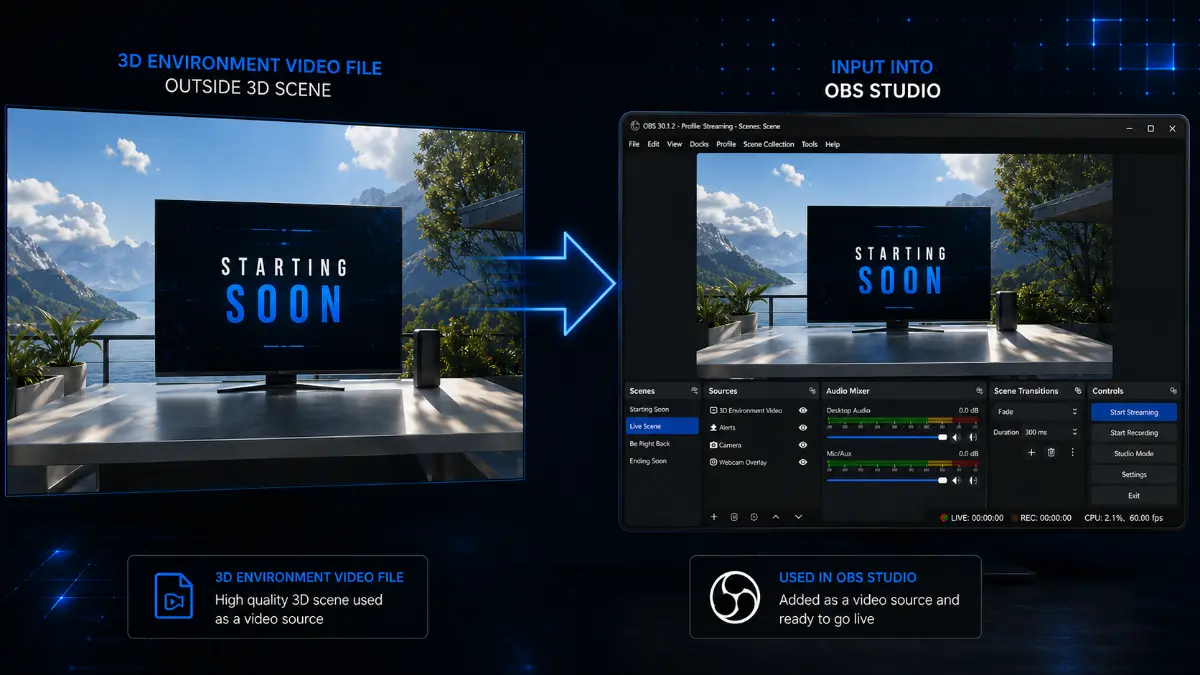
You bought or commissioned a beautiful animated Starting Soon screen. You drag the file into OBS Studio, hit go, and immediately something is wrong. The animation stutters. Your encoder spikes. The loop has a visible jump every 30 seconds. The frame rate drops every time the scene becomes active. Or, on the worst end, OBS just crashes when you switch scenes.
Almost every one of those problems comes from the same handful of misconfigured settings, and none of them require new hardware to fix. This guide walks you through the exact OBS settings we ship with every commissioned scene to make sure it plays back at full quality with no lag, no stutter, and no broken loop. Tested on Windows 10/11, macOS 12 (Monterey) and later, and Linux with OBS Studio 31 and later (32.x is current as of this writing).
- Before you start: file format and specs
- Step-by-step: add the media source
- Hardware decoding (the single biggest performance setting)
- Scene transitions and "restart playback"
- Audio handling and music layering
- Performance: encoder settings that matter
- Troubleshooting common problems
- Advanced: VLC source vs Media source
- Frequently asked questions
Before you start: file format and specs
The settings inside OBS only work if the file you are loading is built correctly in the first place. If you are commissioning custom work, the file you receive should already be configured to these specs. If you are using a template pack or rendering your own from After Effects or Blender, double-check before you blame OBS:
- Container: MP4 (H.264) for opaque scenes, WebM (VP9) for scenes that need transparency
- Resolution: 1920 x 1080 minimum (1080p), 2560 x 1440 (1440p) preferred where hardware allows for visibly cleaner results, matched to your stream output resolution where possible
- Frame rate: 24, 25, 30 or 60 fps. For slow cinematic 3D backgrounds, 24 fps is fine and can look more filmic when the render has motion blur. For general stream screens, 30 fps is the safest default; use 60 fps when the animation has fast motion or is designed to match a 60 fps stream output.
- Bitrate: 9 to 12 Mbps for 1080p at 24/25/30 fps, 8 to 12 Mbps for 1080p60, and 12 to 15 Mbps for 1440p at 24/25/30 fps. Use the lower end for slow ambient loops and the higher end for particle-heavy, high-detail or fast-moving scenes.
- Loop: seamless (the final frame matches the first frame so the cut is invisible)
- Audio: sound effects and sound design embedded is fine, but no music baked in - run background music as a separate OBS source so you can swap tracks (see audio section below)
If the file does not match those specs, no amount of OBS configuration will fix it. We have a separate guide on Starting Soon screen sizing and specifications if you need the long version.
Step-by-step: add the media source
OBS gives you two ways to load a video file: Media Source and VLC Video Source. For 99% of stream scenes you want Media Source. It is built into OBS, hardware-accelerated, and supports both MP4 and WebM natively. Use VLC Source only for the rare cases covered in the Advanced section.
Open the scene where the screen will live
In OBS, select the scene you want to use the animated screen in. Most streamers create a dedicated scene for each transitional moment, named like "Starting Soon", "BRB", "Be Right Back" or "Ending". You should already have these scenes set up before adding sources.
Add a Media Source
In the Sources panel at the bottom of the OBS window, click the plus icon and choose Media Source from the menu. Give it a clear name (for example, "Starting Soon Loop") and click OK.
Browse to your file
In the Properties window that appears, leave Local File ticked and click Browse to navigate to your animated screen file. Pick the MP4 or WebM. If you move the file later, OBS will show a "Some files are missing" warning on launch - re-point the path via Source Properties or use Scene Collection > Check for Missing Files to fix it.
Tick the Loop checkbox
Crucial. Without this enabled, OBS will play the file once and then either hide the source or freeze on the last frame, depending on the "Show nothing when playback ends" setting in the same properties panel. With Loop enabled, OBS plays the file in a continuous loop with no visible cut as long as the file itself was rendered as a seamless loop.
Decide on Restart playback when source becomes active
This setting determines whether the loop restarts every time you switch to the scene, or keeps playing continuously in the background. There is no universally right answer, but here is the rule we use:
- Tick it if the screen is built around a dramatic intro or build-up that should always start from frame 1 when viewers see it (most Starting Soon screens with a dramatic opening).
- Untick it if the screen is a continuous ambient loop where viewers should not see the same intro twice in a row (most BRB and Intermission screens).
Enable hardware decoding
Tick Use hardware decoding when available. This is the single most important performance setting, covered in detail in the next section.
Click OK and position the source
Close the Properties window. Your scene should now show the animated screen. If it does not fill the canvas exactly, right-click the source and choose Transform > Fit to screen (or press Ctrl+F). Lock the source by clicking the padlock icon next to its name to prevent accidental drag-resizing during a stream.
Hardware decoding: the single biggest performance setting
The single most common cause of "OBS lags when I switch to my Starting Soon screen" is the source playing back through CPU decoding instead of GPU decoding. By default in some older OBS builds, hardware decoding is off. Switching it on offloads the entire video playback workload from your CPU to your GPU, freeing up CPU cycles for the encoder.
To enable it: right-click the Media Source, choose Properties, and tick Use hardware decoding when available. That is it. The performance difference is immediate and significant.
Modern GPUs have dedicated H.264 and H.265 decode hardware that handles 1080p60 video playback at essentially zero cost. The CPU, by contrast, has to use software decode loops that compete with the encoder. On a single-PC streaming setup running x264 software encoding, hardware video decode can mean the difference between dropped frames and a clean stream.
The one caveat: WebM with VP9 transparency is decoded in software on virtually every consumer GPU. VP9 alpha is encoded as a secondary stream that hardware decoders cannot handle, so the hardware-decoding checkbox effectively does nothing for these clips - they will run on your CPU regardless. On lighter CPUs this can cost real performance, so prefer a smaller canvas or shorter loop for transparent WebM screens, or use opaque MP4 H.264 where transparency is not actually needed.
Scene transitions and "restart playback"
How a Media Source behaves during a scene change is one of the parts of OBS that confuses streamers most. The behaviour depends on three settings working together:
| Setting | Effect |
|---|---|
| Restart playback when source becomes active | If on, the file restarts from frame 1 every time you cut to the scene |
| Loop | If on, the file restarts from frame 1 when it reaches the end (regardless of scene activity) |
| Show active source when scene becomes active | OBS-wide setting that affects whether sources reset on scene change |
The combination most streamers want for a Starting Soon screen with a dramatic intro is: Restart playback ON, Loop ON. The screen restarts from the beginning every time you cut to it (so viewers always see the dramatic opening), and it loops continuously while the scene is active.
For a continuous ambient BRB or Intermission scene, the combination is usually: Restart playback OFF, Loop ON. The screen plays continuously in the background, so when you cut away and come back, it picks up where it left off rather than restarting the same intro.
Audio handling and music layering
Audio handling for animated stream screens deserves a careful approach. The right setup separates two different kinds of audio: sound effects that are part of the animation (a riser into a logo reveal, a glitch hit on a transition, ambient room tone), and background music that plays underneath. The first belongs in the video file; the second does not.
Our standard recommendation, covered in detail in our Starting Soon screen sizing guide, is to embed sound design directly in the MP4 if it is timed to the animation, but keep background music as a separate OBS audio source. This gives you frame-perfect SFX timing while still letting you swap, mute or replace music without re-rendering anything. If you are working with a file that has full music baked in and cannot get a cleaner version:
- In the Audio Mixer panel at the bottom of OBS, find the Media Source by name
- Adjust the volume slider independently of your music player
- Right-click the source and choose
Advanced Audio Propertiesto set per-track routing if you stream to multiple audio destinations
If you bake a full music track into a 3D background video, the video usually needs to run as long as the song - often three or four minutes - before it can loop cleanly. Strong PCs can handle that, but it increases file size and makes the source heavier than it needs to be. A cleaner workflow is to keep only timed SFX and sound design inside the looping video, then run music as a separate OBS audio source. That keeps the video file smaller and lets you change the music track whenever you want, even from one stream to the next.
Performance: encoder settings that matter
If your OBS still drops frames after enabling hardware decoding, the bottleneck is probably the encoder rather than the source. The animated screen pushes the encoder harder than a static image because every frame is different, which means more data to compress.
The settings most likely to help:
- Switch from x264 to a hardware encoder. OBS supports four major hardware encoders: NVENC (Nvidia), AMF (AMD), QSV (Intel) and VideoToolbox (Apple Silicon). Hardware encoders are dramatically faster than CPU encoding and free up CPU for everything else. On NVIDIA cards from the RTX 20-series (Turing) onward, NVENC quality is essentially indistinguishable from x264 medium preset at the same bitrate; on RTX 40 (Ada) and RTX 50 (Blackwell) cards, NVENC pulls ahead of x264 medium in many tests. AMF on RDNA2 and later, Intel QSV on Arc and Battlemage, and Apple VideoToolbox on M-series are all competitive in 2026.
- Set keyframe interval to 2 seconds. Twitch, Kick and YouTube all recommend this; YouTube specifically caps it at 4 seconds. Anything beyond that range can cause buffering on viewer playback.
- Be intentional about resolution mismatches. Downscaling a 1440p screen to a 1080p stream output (or downscaling 4K to anything below it) actually produces visibly cleaner results than a native-resolution source - this is a common premium workflow. Upscaling a lower-resolution screen to a higher canvas, on the other hand, will soften the image. Modern GPUs handle high-quality downscaling cheaply; on weaker hardware or when chasing absolute lowest CPU/GPU cost, matching resolutions exactly avoids any scaling work.
- Set the OBS canvas resolution to match your stream output. Common values: 1920x1080 canvas, 1920x1080 output, 60 fps. Anything different will cause scaling.
Troubleshooting common problems
The animation stutters or skips frames
Almost always hardware decoding being off, or the file's bitrate being too high for your storage to deliver in real time. First fix: enable hardware decoding (Step 6 above). Second fix: if your file is on a slow external drive, copy it to your fastest internal SSD.
I see a black frame when the loop restarts
The Loop checkbox is off, OR the file was not rendered as a seamless loop in the first place. Check the source properties first. If Loop is on and you still see a black frame at the loop point, the file itself has the issue, not OBS.
The file plays once and then stops
Loop checkbox is off. Tick it. This is the most common new-streamer issue.
The screen looks soft or pixelated
Resolution mismatch. If your file is 1920x1080 but your OBS canvas is 1280x720, OBS is downscaling and losing detail. If your file is 1280x720 but your canvas is 1920x1080, OBS is upscaling and softening the image. Match them.
The encoder spikes when I cut to the scene
Hardware decoding off, OR the file uses a codec your GPU does not have hardware decode for (rare with H.264, more common with HEVC and VP9 alpha). Try enabling hardware decoding first. If that does not fix it, request a different file format from whoever made the screen.
OBS crashes when I switch to the scene
Almost always a corrupt file or a codec OBS cannot handle. Open the file directly in VLC media player to verify it plays cleanly there. If VLC crashes too, the file is corrupt. If VLC plays it fine but OBS crashes, switch to using a VLC Video Source instead of Media Source for that file.
Advanced: VLC source vs Media source
OBS's built-in Media Source handles 99% of cases cleanly. The VLC Video Source exists for the remaining 1%. Use VLC Source if:
- Media Source crashes OBS when loading a specific file
- You need to play a network stream URL rather than a local file
- You need to play a playlist of files in sequence
- The codec is exotic enough that Media Source does not recognise it
VLC Source uses VLC's own decoder rather than OBS's built-in decoder, which is more permissive about unusual files but also less efficient on hardware decoding for standard formats. For a clean MP4 or WebM, Media Source is always the better choice.
Frequently asked questions
Why does my Starting Soon loop play smoothly until I start streaming, then stutter?
The encoder is competing with the decoder for CPU cycles. Enabling hardware decoding on the Media Source and switching to a hardware encoder (NVENC, AMF, Intel QSV or Apple VideoToolbox) almost always solves this.
Can I use the same animated screen file across multiple scenes?
Yes. Add the same Media Source to each scene that needs it. To save memory, OBS lets you reference the same source from multiple scenes via Add Existing rather than creating duplicates.
What is the maximum file size OBS can handle?
There is no documented hard cap. The real bottleneck is bitrate and codec complexity, not byte count - users routinely run multi-GB files without issue. The practical advice is to re-encode to H.264 at a sensible bitrate (8 to 15 Mbps for 1080p) rather than worrying about file size in megabytes. If your file is significantly over 100 MB for a 60-second loop, the bitrate is probably higher than it needs to be.
Will animated screens hurt my CPU usage during gameplay?
By default, no - but not for the reason most streamers think. OBS does not automatically stop decoding sources in inactive scenes. To free the decoder when your Starting Soon or BRB clip is not on Program, enable Close file when inactive in the Media Source properties (it ships off by default). Combined with hardware decoding, this minimises load when the source is hidden behind your gameplay scene. Without it enabled, the source keeps decoding silently in the background even when you have cut away.
Does this guide work for Streamlabs Desktop too?
Mostly yes. Streamlabs Desktop is a fork of OBS with different UI. The Media Source settings are functionally identical, just laid out differently. The same hardware-decoding rule applies.
The takeaway
Most "OBS lags my animated stream screen" problems come from three settings: hardware decoding off, the wrong loop configuration, or a file that does not match your stream output specs. Fix those three and 95% of playback issues disappear. The remaining 5% are usually the file itself, not OBS, which is why getting the source file right (correct format, correct resolution, correct bitrate, seamless loop, no embedded audio) matters more than any OBS configuration.
If you are commissioning custom work, ask up front whether the deliverables are configured for OBS playback specifically. Anyone who works with streamers regularly should ship files that drop in cleanly with default Media Source settings. If you are wrestling with playback issues even after following this guide, the file is fighting you, and the answer is a better source file rather than more OBS tweaking.