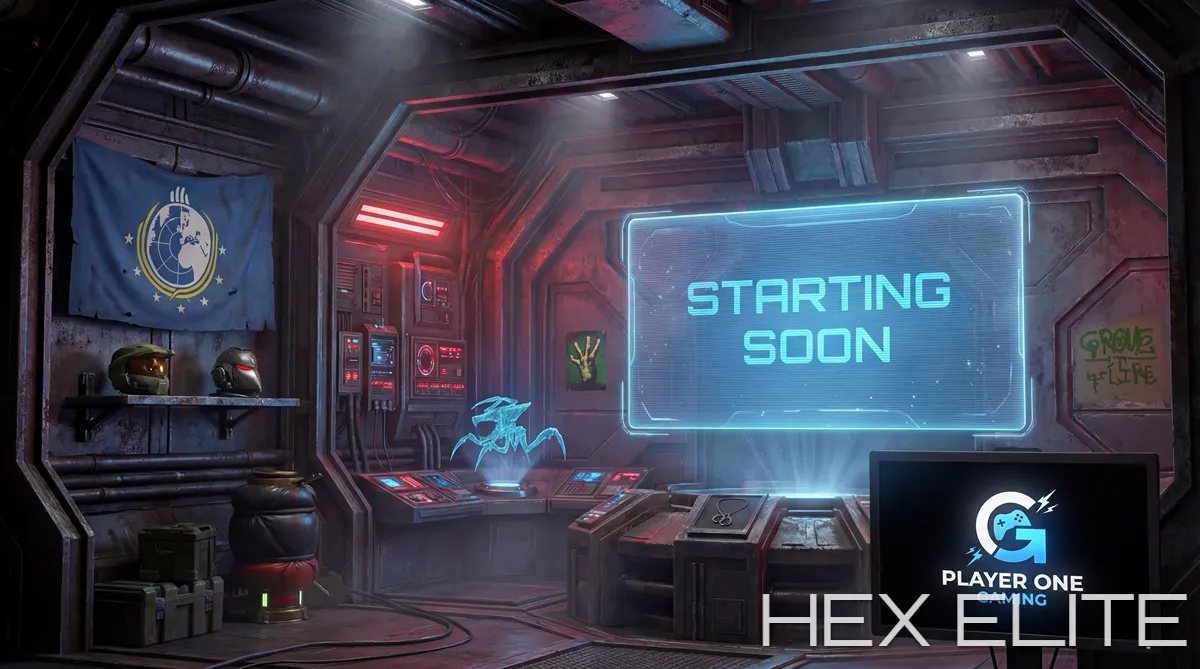
If you have ever uploaded a Starting Soon screen to OBS only to find it pixelated, stretched, cropped, or running at half the frame rate you exported, you already know that "what size should it be" is not a one-line answer. The wrong dimensions are the single most common reason a brand new Starting Soon screen looks amateur the moment it goes live, even when the design itself is great. This guide is the spec sheet we wish every streamer had bookmarked before they spent money on overlays.
We have built well over a hundred custom Starting Soon screens for Twitch, Kick and YouTube creators across every category from FPS to IRL to VTuber, and the technical settings below are the ones that consistently work across the broadest range of streaming setups, encoder configurations and viewer devices. They are the defaults we ship every commission with unless a client specifically asks for something else.
- The short answer (for people in a hurry)
- Resolution: 1080p, 1440p or higher?
- Aspect ratio: 16:9 is the default
- Frame rate: 24, 30 or 60 fps?
- File format: MP4, WebM or animated PNG?
- File size and bitrate limits
- Loop length and seamless loops
- Audio: sound effects yes, embedded music usually no
- Mobile and chat overlay considerations
- The complete spec table
- Five common sizing mistakes (and how to fix them)
The short answer
If you only read one section, read this one. For 95% of Twitch, Kick and YouTube streamers in 2026, your Starting Soon screen should be:
- 1920 x 1080 pixels (full HD, also called 1080p) - or 2560 x 1440 pixels (1440p) if you want premium quality and your hardware can handle it (more on this below)
- 16:9 aspect ratio (the same shape as your stream output)
- 24, 30 or 60 fps depending on motion type - 30 fps is the safe default
- MP4 with H.264 encoding for the best compatibility, or WebM with VP9 if your software supports it
- Under 50 MB total file size for a 30 to 60 second loop on most setups - though if you have a strong streaming or gaming PC, going larger is generally fine
- Seamless loop so the end frame matches the start frame perfectly
- No embedded music in the video file - run music separately so you can swap it any time. Built-in sound effects that match the animation are fine and often add real impact
If those numbers cover everything you needed, you can stop here. If you want to know why each of those is the recommended setting, what changes for 4K monitors and high-refresh streams, and what mistakes to avoid, the rest of this guide breaks each one down.
Resolution: 1080p, 1440p or higher?
1920 x 1080 has been the standard streaming resolution since the late 2010s and it is still the most widely used in 2026 for one simple reason: it matches the resolution that almost every streamer outputs at. Twitch's recommended source resolution is 1080p (the same recommendation applies whether you are an Affiliate or a Partner; the only difference between the tiers is guaranteed access to transcoding for viewers on slower connections). Kick recommends the same. YouTube allows higher resolutions, but industry estimates suggest the vast majority of viewers watch at 1080p or below regardless of what you output, because their connection, their device, or their habits all default to that ceiling.
If your Starting Soon screen is the same resolution as your stream output, the encoder does no scaling. No scaling means no softness, no aliasing, and no compression artifacts that get baked in twice. Every pixel of your design lands exactly on a pixel of the viewer's screen. That is the case for going native 1080p.
Why we mostly produce at 1440p
That said, as a premium creator, the resolution we ship most often is 2560 x 1440 (1440p), even when the streamer is outputting at 1080p. Here is why: a 1440p source downscaled to 1080p in OBS looks visibly cleaner than a native 1080p source. Edges are sharper, fine detail like neon glow, particle work and small text holds up better, and compression artifacts are less obvious because the encoder is starting from a higher quality master. The trade-off is a slightly larger file and a small amount of CPU/GPU overhead during downscale, which is a non-issue on any modern streaming or gaming PC.
If you are streaming at 1080p and your hardware is capable, ordering at 1440p is the easiest "free" quality upgrade you can give your stream. The same logic applies if you stream at 1440p natively - in that case, 1440p is the obvious match. A workflow we use ourselves is streaming at 1440p with the canvas upscaled to 4K output, which gives the cleanest possible result on platforms that accept 4K ingest while keeping render time and file weight reasonable. We deliver both 1080p and 1440p versions on most projects (and 4K on request) so you can swap depending on your setup that day.
If you stream at 4K natively, or you want the absolute sharpest cinematic quality possible, commission your Starting Soon screen at 3840 x 2160 (4K). The file will be larger, but the visual quality difference is significant, and downscaling from 4K to 1080p still looks better than a native 1080p source. Every screen we ship at 4K resolution also includes a 1080p downscale so you can swap between them depending on your setup.
This matters more in 2026 than it used to. Twitch's Enhanced Broadcasting feature (general availability since OBS Studio 30.2 in July 2024) supports a multi-track ladder up to 1080p60 with H.264 for everyone, and 1440p / 4K60 with HEVC for streamers in the Enhanced Broadcasting beta community. If you stream at one of these higher resolutions, your Starting Soon screen should match.
Going lower than 1080p is almost never worth it in 2026. The bandwidth saving is trivial on modern internet connections, and the visual hit is severe. If your file size is too large, the answer is better compression, not lower resolution.
Aspect ratio: 16:9 is the default
1920 x 1080 is a 16:9 ratio, the same shape as a widescreen TV or monitor. Every major streaming platform expects this ratio for the main video frame. If you upload anything else, two things happen, both bad: the platform either stretches the image to fit (making everything look squashed or elongated), or it letterboxes with black bars at the top and bottom or sides.
The most common mistake we see is streamers commissioning a Starting Soon screen at a square or vertical ratio because they have seen a TikTok-style format and assumed it works for their main stream. For traditional horizontal streaming on Twitch, Kick and YouTube, your main Starting Soon screen should be 16:9. If you upload anything else as your main horizontal asset, the platform either stretches the image (making everything look squashed) or letterboxes with black bars at the top and bottom or sides.
That said, the 16:9-only rule has loosened in 2026. Twitch's Dual-Format streaming (in beta as of 2025) lets streamers broadcast a 16:9 horizontal feed and a 9:16 vertical feed at the same time, and YouTube has supported vertical live streams in the Shorts feed since 2024. Kick is still 16:9 only. If you stream on Twitch Dual-Format or YouTube vertical lives, you will want both a 1920 x 1080 horizontal version and a 1080 x 1920 vertical version of your Starting Soon screen, with critical text and logo elements positioned where they survive both crops. We deliver both versions when a client asks for vertical support; otherwise the 16:9 version is the default.
Frame rate: 24, 30 or 60 fps?
Frame rate determines how smooth the motion in your animation looks. The three values that matter for streaming are 24, 30 and 60 fps. Smoothness at lower frame rates depends on motion blur, motion speed and how the source frame rate matches your stream output - not the frame rate alone. A 24 fps render with motion blur is the cinema standard for a reason: Pixar, Disney and most narrative film export at 24 fps and read as completely smooth. Anything above 60 fps is wasted on Twitch (the platform caps at 60 anyway).
The right choice depends on what is moving in your design:
- 24 fps is the cinematic standard. Perfect for slow ambient looping motion: drifting particles, gentle camera moves, soft lighting shifts, smoke and atmospheric detail. As long as your render has motion blur enabled (a 180 degree shutter equivalent in Redshift, Octane, Cycles or Arnold), 24 fps reads as cinematic, not choppy. Smallest file size of the three.
- 30 fps is the cadence-friendly default for stream overlays because it divides cleanly into a 60 fps stream output - each frame held for exactly two output frames, no judder. A safe choice if you are rendering without motion blur or you want guaranteed-clean playback against any stream output. Files are roughly 50% larger than 24 fps but still moderate.
- 60 fps is the right choice for fast motion: flythroughs through a 3D environment, dramatic camera moves, particle bursts, lens flares and kinetic typography where the smoothness difference is genuinely visible. Not recommended for slow ambient backgrounds - it doubles the file size and CPU cost in OBS for no visual benefit, and can push atmospheric content toward a hyper-real "soap opera" look that breaks the cinematic mood.
If you are unsure, 30 fps is the safe default - it is cadence-clean against any stream output and balances quality with file size. Reach for 24 fps when you want true cinematic mood and the motion is slow enough to make the most of it. Save 60 fps for the fast-motion sections where the smoothness difference is genuinely visible. The frame rate that fits the motion almost always looks better than the highest frame rate available.
File format: MP4, WebM or animated PNG?
There are three sensible choices for delivering an animated Starting Soon screen, and each has trade-offs.
MP4 (H.264)
MP4 with H.264 encoding is the universal default. Every streaming software supports it, every operating system plays it natively, and it has the best balance of file size, quality, and compatibility. If you only commission your Starting Soon screen in one format, this is the format. The downside is that MP4 does not support transparency, so if your design needs transparent backgrounds for layering, you need to look at WebM.
WebM (VP9)
WebM with VP9 encoding gives you better compression than MP4 (typically 30 to 50% smaller files at equivalent quality) and supports transparency, which is essential for designs that overlay onto a background scene. OBS, Streamlabs and StreamElements all support WebM natively in 2026. The trade-off is that WebM encoding takes longer, and some older hardware encoders struggle with it. We deliver every commissioned Starting Soon screen in both MP4 and WebM by default so you can pick the best one for your setup.
Animated PNG / GIF
Avoid both. Animated PNG files are enormous compared to video formats for equivalent quality, and GIF maxes out at 256 colours, which makes any modern 3D rendered scene look terrible. The only legitimate use case in 2026 is a tiny looping element like a small badge or icon, never a full Starting Soon screen.
File size and bitrate limits
There is no hard upper limit on file size for an asset that lives on your local machine and gets played by OBS, but there are practical reasons to keep it lean. Larger files take longer to load when OBS first starts up, use more disk I/O while playing, and on lower-spec streaming PCs can cause encoder lag if the storage cannot keep up.
Our standard recommendation:
| Loop length | 1080p target file size | 4K target file size |
|---|---|---|
| 15 seconds | 10 to 15 MB | 30 to 50 MB |
| 30 seconds | 20 to 30 MB | 60 to 100 MB |
| 60 seconds | 40 to 60 MB | 120 to 200 MB |
| 90 seconds | 60 to 90 MB | 180 to 300 MB |
If your delivered file is significantly larger than these targets, the encoder is probably set to a higher bitrate than necessary. For context, Twitch's official live stream bitrate cap is 6 Mbps (Kick goes up to 8 Mbps, YouTube allows higher). For your prerecorded Starting Soon loop, a bitrate of around 8 Mbps for 1080p60 produces visually indistinguishable results from 12 Mbps in most real-world scenes, while saving roughly a third of the file size. Going higher than 12 Mbps for a Starting Soon loop is rarely worth it.
Loop length and seamless loops
In our experience, most viewers spend between 30 seconds and 3 minutes on your Starting Soon screen before the actual stream begins. If your loop is shorter than 30 seconds, the repetition becomes obvious and starts to feel cheap. If it is longer than 90 seconds, your file gets unnecessarily large and the encoder works harder than it needs to.
This is what "seamless looping" means in technical terms: the final frame of the video transitions smoothly into the first frame so that when the player loops back to the start, there is no jump cut, no fade-to-black, no obvious reset. It requires the animation to be designed as a closed cycle from the beginning, which is significantly harder than designing a one-shot animation. Always confirm your overlay creator delivers seamless loops, not just short clips.
Audio: sound effects yes, embedded music usually no
This is one of the most contested questions in streaming visual design, and the right answer is more nuanced than "no audio at all". Our recommendation is simple: build sound effects directly into the video file, but keep your background music as a separate audio source in OBS.
Why sound effects belong in the video
Sound design that is timed to your animation - a low rumble as the camera pushes in, a synth riser into a logo reveal, a glitch hit on a transition, ambient room tone for atmosphere - is part of the visual itself. Baking these into the MP4 keeps the timing locked frame-perfect, and the impact is significantly stronger than animation alone. A well-designed Starting Soon screen with embedded SFX feels like a finished piece of media rather than a moving wallpaper. Our premium screens almost always include this layer.
Why background music should stay separate
Music is different. If the music track is baked into the video, you cannot adjust the volume independently of the visuals, you cannot ever change the track without re-rendering the whole video, you cannot pause music while keeping the visual running, and you cannot switch tracks based on the day or mood of the stream. Most streamers also rotate music regularly, both to keep things fresh and to stay clear of DMCA-flagged audio. Locking yourself into a single embedded track is the wrong call for almost everyone.
The exception
If a client specifically wants a fully self-contained scene with bespoke music baked in - for example a short cinematic reveal that always plays the same way - we will produce that on request. It is the right call in some cases, particularly for branded one-shots or VOD intros. But for a regular Starting Soon screen that loops in the background while you wait for chat to fill in, separate music is almost always the better workflow.
Mobile and chat overlay considerations
A meaningful percentage of your viewers will arrive on mobile, and mobile clients display the stream differently from desktop. In portrait mode, Twitch, Kick and YouTube mobile apps put the chat below the video, which crops the visible video area significantly. In landscape mode, chat moves to a side panel on the right (Twitch and YouTube) or hides entirely until tapped (Kick). Mobile devices also crop 16:9 content aggressively when the user goes full-screen on a 19.5:9 phone. If your most important visual elements (logo, channel name, social handles) are placed too far toward one edge, mobile viewers may not see them at all.
Our standard practice is to keep all critical text and logo elements within the central safe zone: the middle 80% of the frame both horizontally and vertically. Modern broadcast safe-area standards specify around 90% (5% margins), but for streaming we deliberately tighten that to 80% because mobile clients crop 16:9 content much more aggressively than a TV ever did. Decorative elements can extend to the edges, but anything that needs to be read must stay inside the safe zone. This single rule eliminates probably half of all "my logo is hidden on mobile" complaints we see streamers post about competitor work.
The complete spec table
| Setting | Recommended value | Notes |
|---|---|---|
| Resolution | 1920 x 1080 or 2560 x 1440 | 1440p preferred where hardware allows; 4K if streaming 4K |
| Aspect ratio | 16:9 | Non-negotiable for desktop streaming |
| Frame rate | 24, 30 or 60 fps | 24 cinematic, 30 cadence-friendly default, 60 for fast motion |
| Container format | MP4 | WebM if transparency required |
| Video codec | H.264 (MP4) or VP9 (WebM) | H.265 not yet universal in OBS |
| Bitrate | 8 to 12 Mbps | For 1080p60 |
| Loop length | 30 to 60 seconds | Must be seamless |
| Audio | SFX embedded, music separate | Run background music as its own OBS source |
| Colour space | sRGB / Rec. 709 | Standard for streaming |
| Safe zone | Middle 80% of frame | Critical text and logos only |
| File size target | 30 to 60 MB | For a 30 to 60 second 1080p loop |
Five common sizing mistakes (and how to fix them)
1. Resolution mismatch (the wrong direction)
Streamer outputs at 1080p but commissions a 720p Starting Soon screen "to save bandwidth". The result: OBS upscales the source, the screen looks soft and slightly blurry, and the brand work gets blamed when the encoder is the real problem. Fix: never order a screen at a lower resolution than your stream output. Going higher than your output (1440p screen on a 1080p stream, or 4K on 1440p) is fine - that downscale path is what we recommend for premium quality. Going lower is what creates the blur.
2. Vertical or square dimensions
Streamer commissions a 1080 x 1080 square Starting Soon screen because they have seen one on TikTok. It plays back letterboxed on Twitch with huge black bars left and right. Fix: 16:9 only for live streams. Vertical formats are a separate commission.
3. Hard cut at the loop point
The animation reaches its end frame, jumps abruptly back to the start, and viewers see a visible jolt every 30 seconds. Fix: insist on a seamless loop where the end transitions into the start without a cut.
4. Critical content too close to the edges
The streamer's logo sits in the bottom-right corner, and on Twitch mobile in portrait it disappears below the chat panel; in landscape on a tall phone it gets cropped. The streamer never sees this because they review on desktop. Fix: keep all critical content (logo, channel name, social handles) inside the central safe zone.
5. Embedded audio that cannot be changed
The Starting Soon screen ships with a music track baked into the video file. Six months later the streamer wants to update the music for a new season but cannot do it without commissioning the whole asset again. Fix: never embed background music in the video. Run music as a separate audio source.
The takeaway
The right specs for a Twitch Starting Soon screen in 2026 are not complicated, but they are unforgiving. A few small mistakes (wrong resolution, wrong aspect ratio, baked-in audio, no safe zone) compound into a Starting Soon screen that looks amateur on day one and stays that way until you replace it. Get the technical foundation right and even a moderately ambitious design will look professional. Get it wrong and even a beautifully designed scene will fight against the playback environment.
If you are commissioning custom work, ask the designer up front for their default delivery specs. Anyone working at a professional level should be able to answer in 30 seconds with numbers that look something like the table above. If they cannot, that is a strong signal to keep looking.